Design
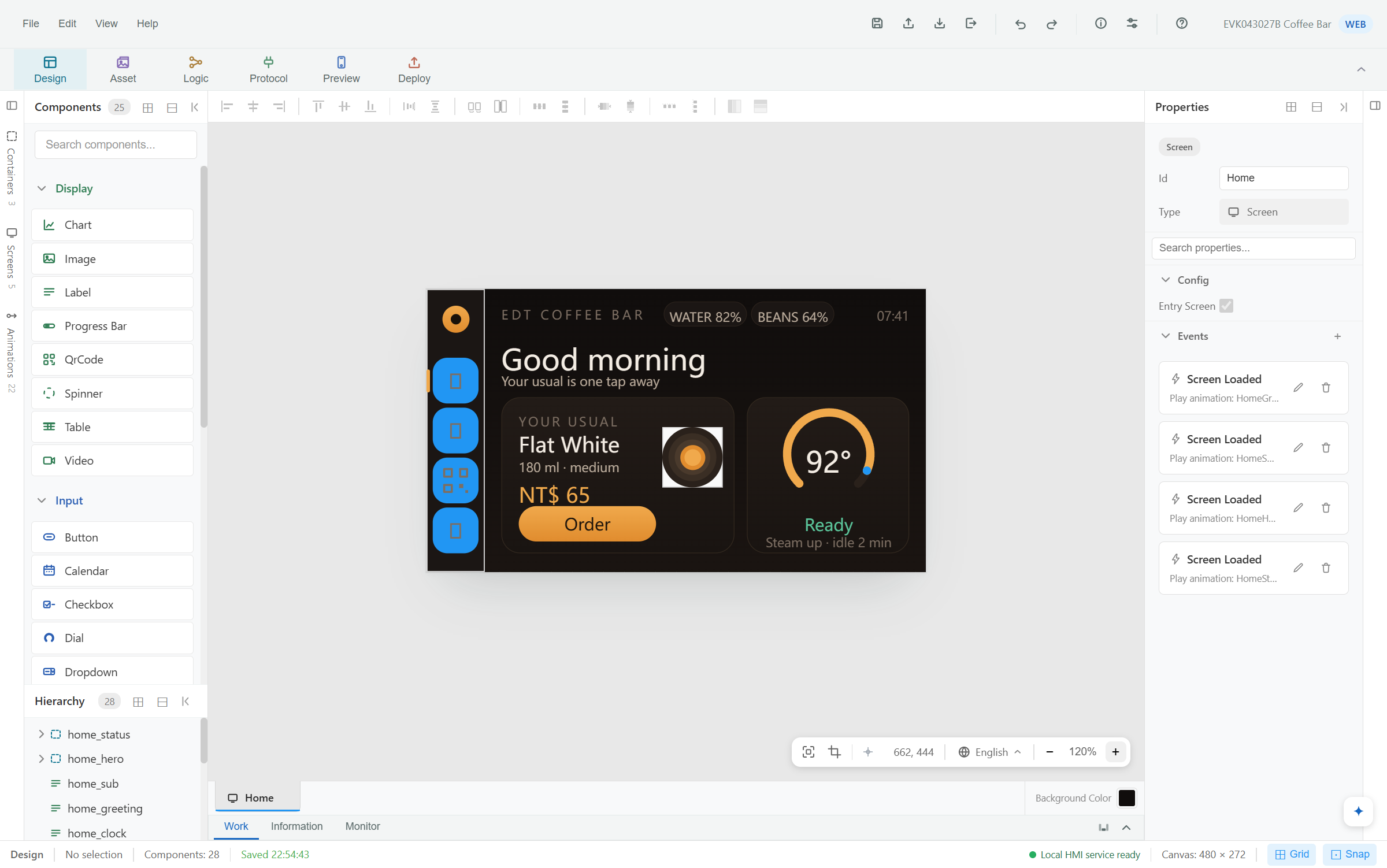
What you see is the HMI.
Drag a widget on, set it, arrange it — the palette on the left, everything about the selection on the right.
Design HMIs — without writing code. Describe a whole project and let the assistant build it, or ask for one change and watch it land. Everything it makes is an ordinary project you can keep editing by hand.
An alpha build, for key stakeholders to evaluate — please do not pass it to downstream customers. Expect rough edges, and send back whatever you find.
EDT HMI Studio is rapid application development (RAD) software built for an AI to operate. It works the same controls you do — screens, widgets, styles, text and languages, drawn pictures, and the values the HMI exchanges with your controller — driving the editor itself, in front of you, from a whole project down to a single word.
From a description: screens, widgets, styles, languages, the values it exchanges with your controller, and the bindings between them.
A sketch, a concept image or a photo of an HMI that already exists — read back to you first, then built at the display's real size.
Text, colours, layout, icons, bindings — in the open project, as one step you can take back.
Ask about the project in front of you. It answers, and changes nothing.
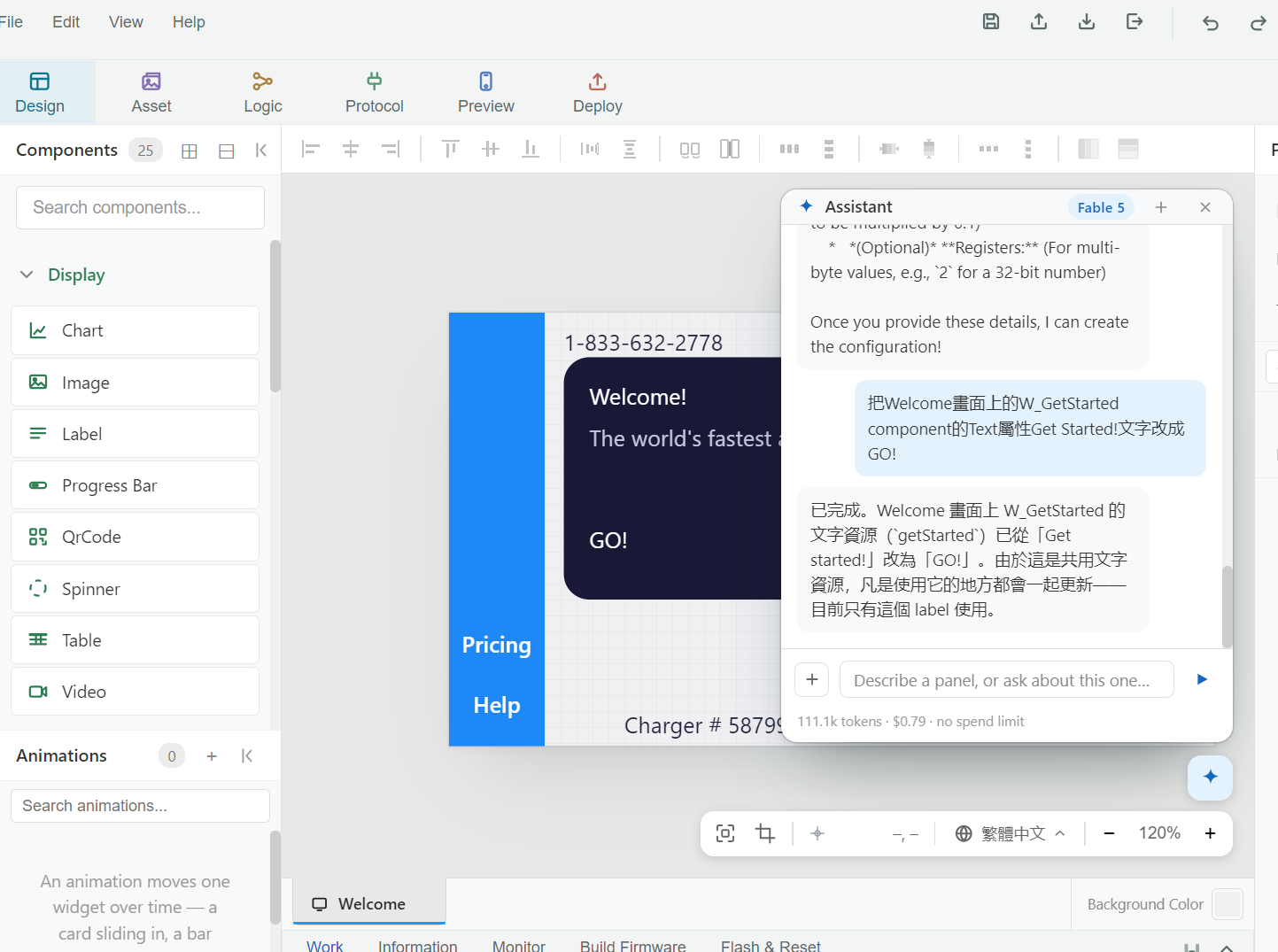 Figure 1. A one-word change, asked in Traditional Chinese. Tap to enlarge.
On the Welcome screen, change the W_GetStarted component's Text from “Get Started!” to “GO!”.
The assistant found the text resource behind that label, changed it, and said what else would follow: the text is shared, so anywhere it's used updates too — here, only this one label.
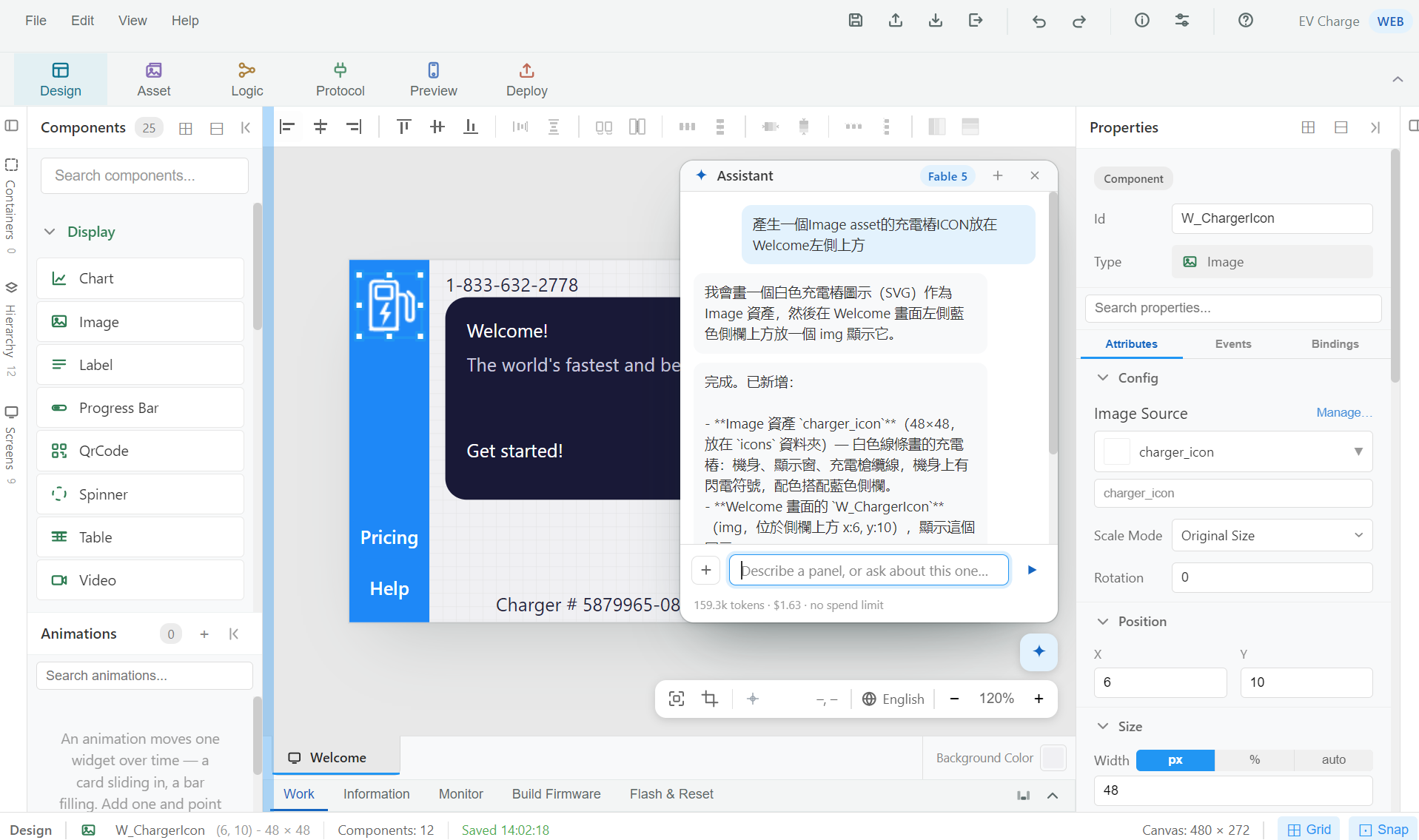 Figure 2. An icon drawn, filed and placed from one request. Tap to enlarge.
Make a charging-station icon as an Image asset and put it at the top left of Welcome.
It drew a white line-art charger — body, display window, cable, a lightning
bolt — in colours chosen for the blue sidebar, filed it as
charger_icon in the icons folder, and placed
W_ChargerIcon at x 6, y 10.
The assistant is a user of the product, not a second product. It can only do what you could do at the same controls.
Every move is an editor action, visible on the canvas while it happens.
However much it did, a run comes back with a single Undo.
Each step passes the editor's own rules. A mistake goes back to the model, not into your project.
It makes content. Sending an HMI to a device stays your decision.
Both are offered only models that can read a picture and call tools — the two things the job takes.
Frontier models through your own OpenRouter key. The key stays on your computer; the page never sees it.
Run a model locally with Ollama — no key, no cloud, nothing billed. Your project doesn't leave the computer.
Let the AI draft the HMI, then finish it by hand in the same editor — or the other way round. Nothing about the project changes depending on who made it.
Taken from this build. Tap a picture to open it full size.
Drag a widget on, set it, arrange it — the palette on the left, everything about the selection on the right.
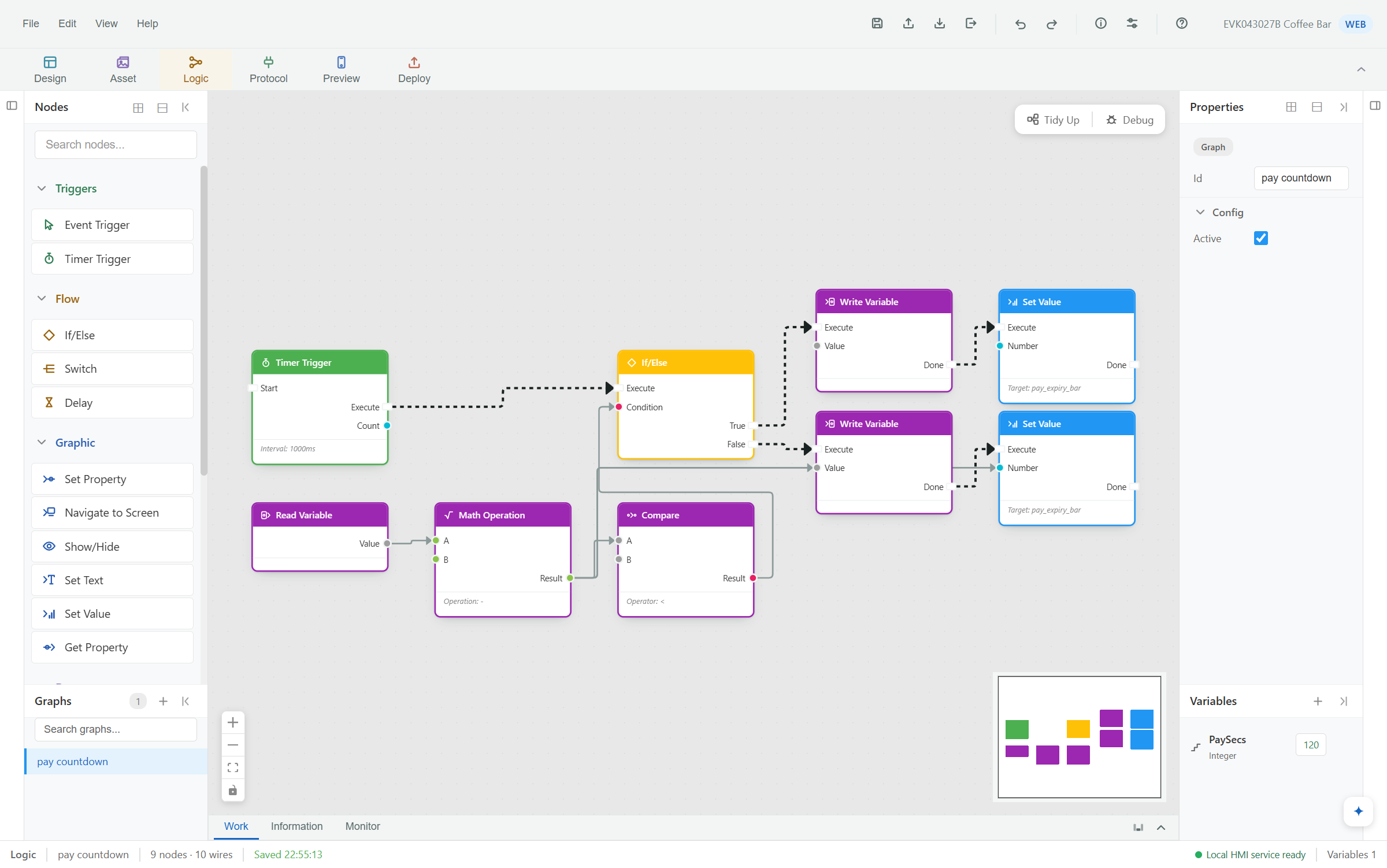
A payment window counted down, compared and branched — nine nodes, ten wires, no scripting language.
A table of named values — where each lives, how it's read, how often — and a budget that says whether it fits on the wire.
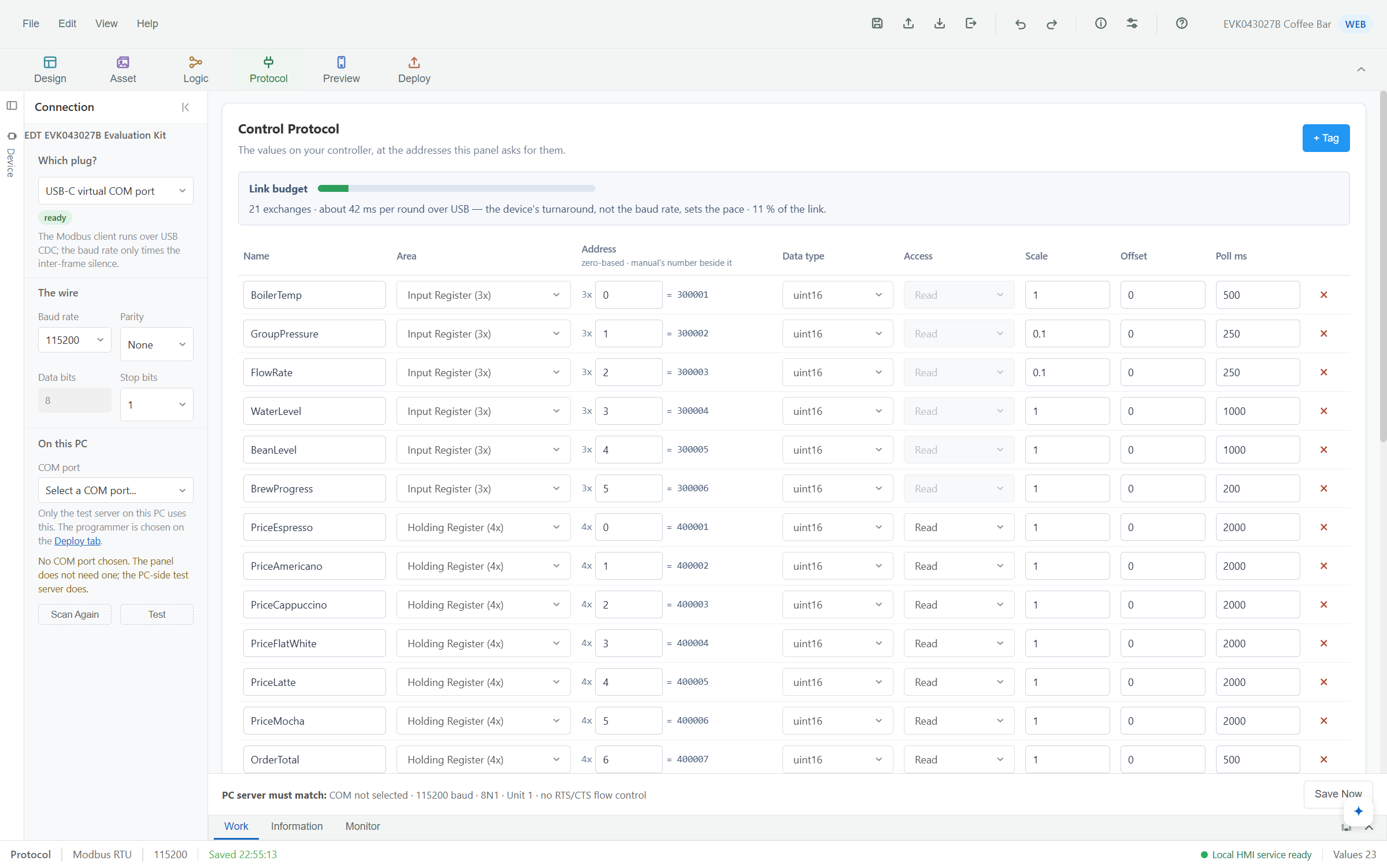
A multilingual coffee machine HMI, generated by the assistant and running against a controller — once over serial commands, once over Modbus.
More walkthroughs

Recorded on 0.8.4.dev.

Recorded on 0.8.1.dev.
Self-contained — nothing to install first. Bring an OpenRouter key or a local model to wake the assistant; everything else works without one.
Verify before running:
1c5ea2e29ca1f1fc7c98495aaa3f003de255473efd22bd23fab1b100dea43707
certutil -hashfile EdtHmiStudio-0.8.5-win-x64-setup.exe SHA256Not code-signed yet, so SmartScreen will warn. Check the hash, then More info → Run anyway. It's a desktop download — on a phone, send yourself this page and open it on your PC.
This build. For evaluation by key stakeholders.
Feature-complete and stabilising, with this build's feedback folded in.
The first build meant for customers — possibly earlier.

